Storage Addon
How to Use the Storage System:
1. Crafting the Tools Storage Connector Stick: Used to link chests and storage blocks. Storage Connector Item: Used to configure and manage storage networks.
2. Linking Chests and Storage Blocks
1. Link a Chest: Hold the Storage Connector Stick in your hand. Right-click on a Chest while sneaking to link it to the stick. You can link up to 5 chests per stick.
2. Link a Storage Block: Hold the Storage Connector Stick in your hand. Right-click on a Storage Block (e.g., um: storge) to link it. You can link multiple storage blocks to create a network.
3. Accessing the Storage Network
1. Open the Storage Interface: Right-click on a Storage Block (um: storge) to open the Cloud Loader menu. Alternatively, sneak and right-click with the Storage Connector Stick to access linked storage locations.
2. Deposit Items: Select the Deposit Items option in the menu. Choose the item and amount you want to deposit. The items will be distributed across all linked chests.
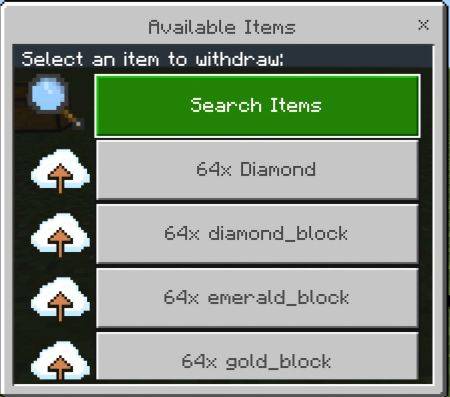
3. Withdraw Items:
4. Check Storage Status: Select the Withdraw Items option in the menu. Choose the item and amount you want to withdraw. The items will be taken from the linked chests and added to your inventory. Use the Chest Network Status option to view the status of all linked chests, including their locations and slot usage.
4. Removing a Storage Block Open the Cloud Loader menu and select the Remove Loader option. The storage block will be removed, and you will receive it back in your inventory.
V2.0
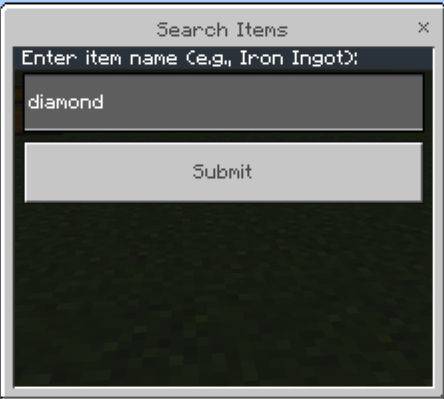
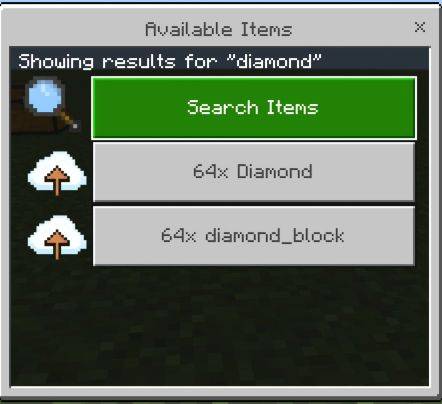
Add New Search Button