

Proximity Voice Chat&Proximity Text Chat
Proximity Voice Chat and Proximity Text Chat
Minecraft Bedrock will add the ability for players to talk to each other when they approach each other, similar to the simple voice chat mod in Minecraft Java.
日本語版はこちら
简体字版本请见此处
🌟 Key Features
- Super Easy Setup: Simply configure your settings on our website and copy-paste the command!
- 3D Positional Audio: Hear other players from the direction they are standing.
- Mobile Support (iOS/Android): Join easily via your browser or our dedicated app.
- Server-Exclusive Addon: A special pack for servers that want to maintain a 24/7 persistent connection.
- Proximity Chat Support: Not just voice—limit text chat to nearby players as well.
⚠️ Important Notes
- Redistribution is prohibited.
- Claiming this work as your own is prohibited.
- Do not publicly expose the entire code. (Sharing within the support server is allowed).
- When using this in videos or streams on platforms like YouTube, please include the URL of this page in the description.
- To use Proximity TC, you must enable Beta APIs.
Questions in the comments section will generally not be answered. Please use the support server.
📋 Changelog
Bug Fixes
- Fixed an issue where players with spaces in their GamerTag were not working.
- Enabled command usage within command blocks.
- Fixed UI bug
- Fixed bugs in the Android application.
💬 How to use Proximity TC
※Please enable Beta APIs. Use this if you want to apply distance limits to the standard text chat in addition to voice.
Main Commands
/tc-help: Show help./lang <ja/en/zh>: Change the display language./distance <number>: Set the chat reach distance./proximity <true/false>: Enable/Disable Proximity Text Chat.- …and more.
[Click here for the full command list]
🚀 Super Easy! Proximity VC Setup
Access this link!
Just choose your preferred settings and press the start button!
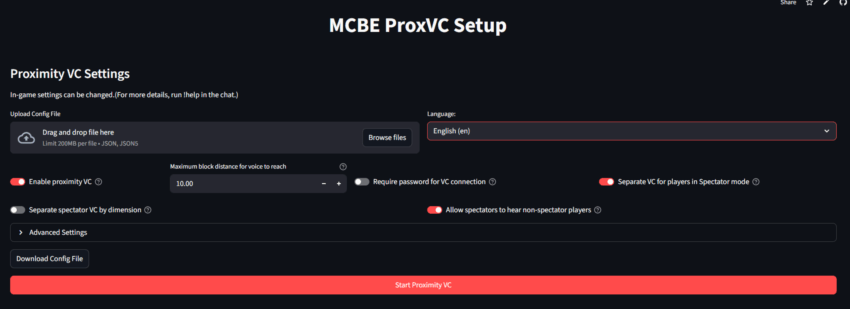
🛠️ How to Start Proximity VC
Note: If using on version 1.21.60 or later, the world owner must enable "Websockets Enabled".
Note: Please turn off "Require Encrypted WebSockets".

Execute the displayed command in Minecraft.
_Note:If the command executor is using a smartphone, please join the VC first.
_
Note:__At this time, the verification code cannot be used.
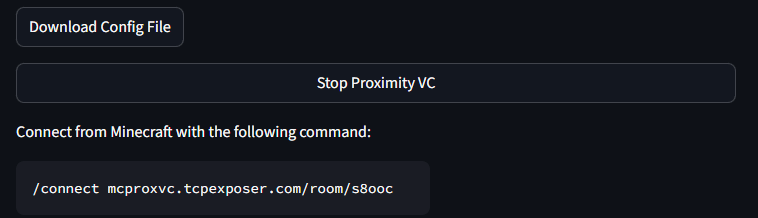
📝 Remarks
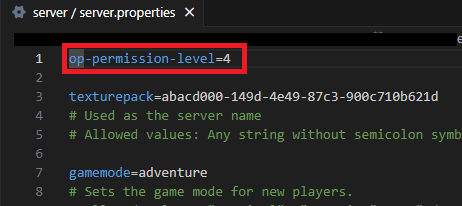
How to Connect on a Server
In your server.properties file, add the line: op-permission-level=4
Note: This will also allow server operations, like stopping the server, to be done via commands.
🔌 Addon (Extensions) Introduction
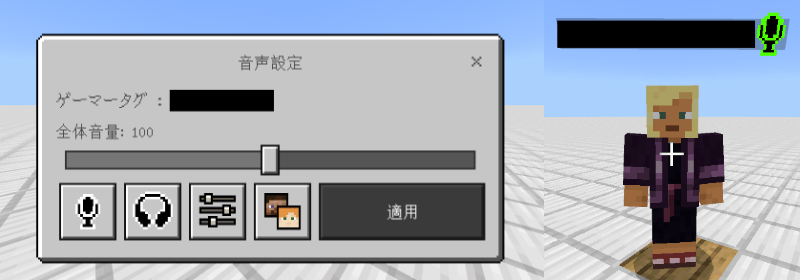
Enhance your experience by installing the Behavior and Resource packs!
Intuitive controls via the in-game panel and the ability to see who is talking at a glance make it incredibly convenient for large group play!
📦 Behavior Pack (BP)
※Please install only one of the following:
- Standard Edition (MCBE-ProxVC addon BP)
- Basic GUI settings and functional extensions.
- Server Edition (MCBE-ProxVC addon BP for server)
- ※Requires Beta APIs.
- Includes all standard features plus 24/7 constant connection. Keeps the VC system active even when the host is offline.
🎨 Resource Pack (RP)
- Displays icons above players' heads for "Talking," "Muted," "Speaking," etc., so you can see everyone's status at a glance!
💡 Recommended Configurations
- "Keep it Simple": No Addon + Website
- "Enhanced Convenience": Standard Addon
- "Include Text Chat": + Proximity TC
- "Professional Server Use": + Server Addon
🎧 How to Join the Call (For all participants)
Access: https://mcproxvc.ovh/connect/
(The Android app version is available here.)
Accessing the URL displayed during setup will automatically fill in the Room ID.
Enter the Room ID and Gamertag, then connect.
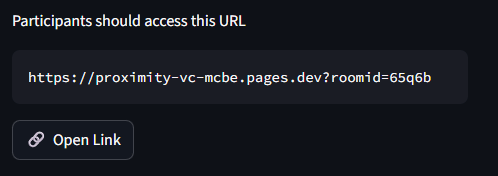
Enter the room ID and gamertag, then connect.
Room ID
Enter the Room ID that was displayed during setup.Gamertag
This is usually your Gamertag, but it might be different in some cases.
Note: Both can be checked by typing/namein-game (or!nameif no addon is installed).
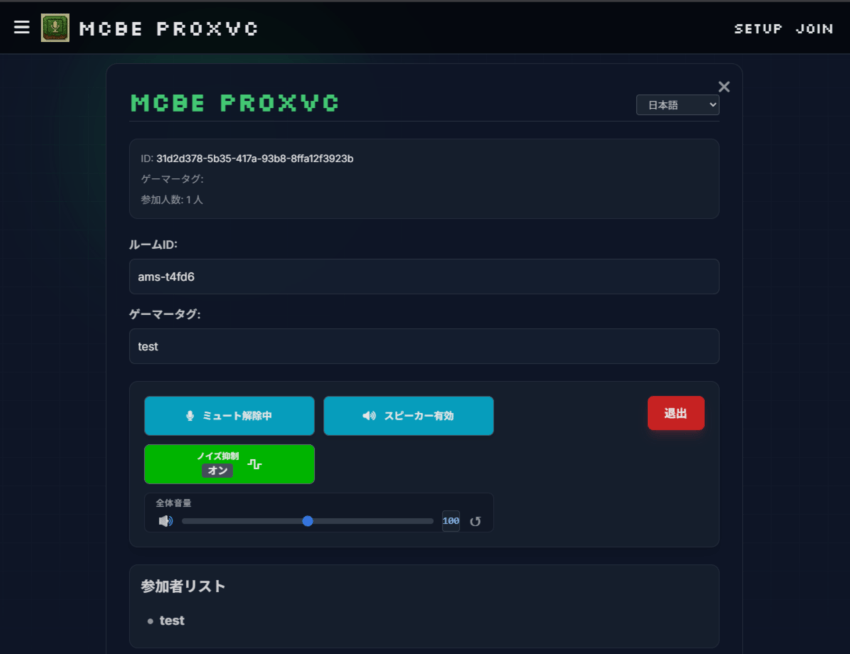
If you see a screen like this, you are successfully connected.
❓ Known Issues and Solutions
・"I can't hear audio" or "I can hear others even when far away": Please leave the call and reconnect.
・If you are using Discord and the web call on the same mobile device: Please leave the Discord call before joining the web call.
- On iPhone, issues may occur when the device enters sleep mode:
・Change your settings to prevent the device from sleeping.
・If it does go to sleep, reconnect to the call. - On some devices, the microphone may not work if you connect to the call and then open Minecraft on the same device:
・For iPhone: Open Minecraft -> Open your browser and connect to the VC -> Re-open Minecraft and enter the world.
・For Android: Use the app.
Other
Questions and Bug Reports
Please use our Discord for this.
Support Server
