
Ore Finder V1.0.1
How to Use the Ore Finder Addon
Step-by-Step Guide
1. Setting the Area
- **Equip the Ore Finder**: Hold the "Ore Finder" item in your hand.
- **Select Position 1**:
- Stand at one corner of the area you want to scan for ores or blocks.
- Right-click (or use the item) to set **Position 1**. A message will appear:
*“Position 1 set: (X, Y, Z). Use the Ore Finder again to set Position 2.”*
- **Select Position 2**:
- Move to the opposite corner of the area.
- Right-click again to set **Position 2**. You’ll see:
*“Position 2 set: (X, Y, Z). Calculating block counts…”*
> **Note**: The maximum area size is **50 blocks per axis** (X, Y, Z). If the distance between Position 1 and Position 2 exceeds 100 blocks in any direction, you’ll get:
> *“Error: Selected area is too large! Max distance is 100 blocks.”* Reset and select a smaller area if this happens.
---
2. Finding Ores and Counting Blocks
- After setting both positions, the addon scans the area and counts all **non-air blocks**, including ores, between Position 1 and Position 2.
- A **Block Counter Result** window will display:
- A list of block types (e.g., `stone`, `iron_ore`, `diamond_ore`) and their quantities.
- The total number of non-air blocks.
- Example output:
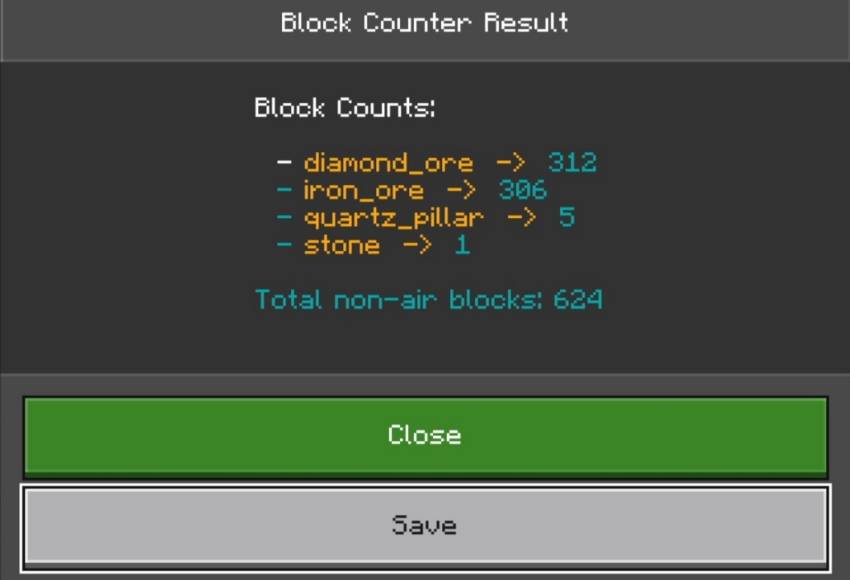
- **Options**:
- **Save**: Store the results for later (see Step 3).
- **Close**: Exit without saving.
---
3. Saving Your Scan
- Select **Save** to keep the ore and block data. A new window will ask for a name (e.g., “OrePatch1”).
- Enter a name and confirm. You’ll get a message:
*“Block counts saved as ‘OrePatch1’. Sneak and use the Ore Finder to view saved data.”*
- Saved scans can be reviewed anytime (see Step 4).
---
4. Viewing Saved Scans
- **Open the Menu**:
- Hold the "Ore Finder" item.
- **Sneak** (default: Shift key) and right-click to access the **Saved Block Counts** menu.
- **Choose a Saved Set**:
- The menu lists all saved scans (e.g., “OrePatch1”, “DeepMine”).
- Click a name to view its details.
- **Review Details**:
- A window shows the saved ore and block counts, just like the initial results.
- **Options**:
- **OK**: Close the window.
- **Remove**: Delete the saved scan. Confirmation:
*“Saved data ‘OrePatch1’ has been removed.”*
---
Tips & Tricks
- **Ore Hunting**: Focus on underground areas (Y-levels 0-60) for the best ore finds.
- **Small Scans**: Use smaller areas (e.g., 10x10x10) for quicker results.
- **Naming**: Use clear names like “DiamondZone” or “NetherOres” to track your scans easily.
---
Troubleshooting
- **“No saved block counts found”**: You haven’t saved any scans yet. Follow Step 3 to save one.
- **Area Too Large**: Keep the area within 50 blocks per axis to avoid errors.
- **No Ores Found**: Try scanning deeper underground or in a different biome.
---
With the **Ore Finder** addon, finding ores and managing blocks is a breeze. Dig in and explore your world like never before!