Build Wand
● HOW TO USE
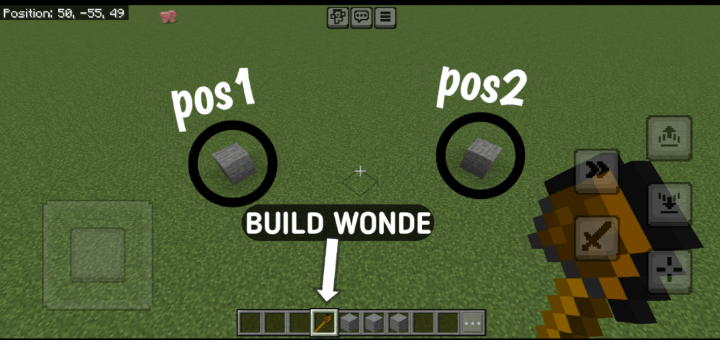
How to Use the Build Wand in Minecraft (3 Steps):
1. Equip and Select Positions: Equip a Build Wand (stone, iron, or diamond) and right-click to select two corner positions of your build area. Heart particles mark the first point, and an outline previews the area after the second.
2. Choose Build Mode: After selecting both points, a menu appears. Pick a mode: Fill (solid structure), Hollow (only walls), or Pattern (checkerboard, stripes, or random).
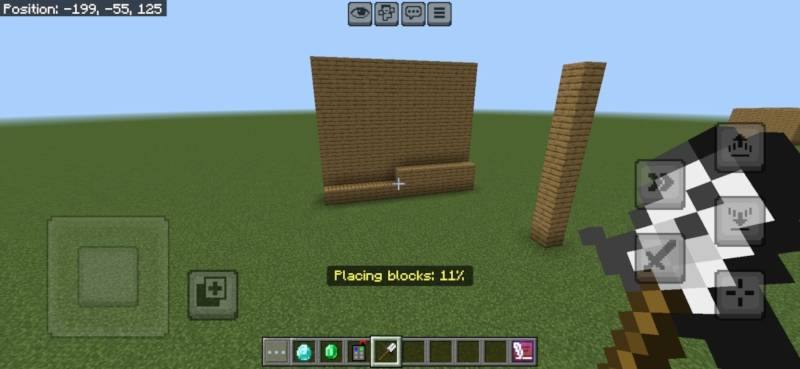
3. Select Block and Build: Choose a block from your inventory in the next menu (ensure you have enough). For Pattern mode, select a pattern. The wand places the blocks, showing a progress bar, and consumes durability based on blocks placed.
V5
Progress Bar
V5.5
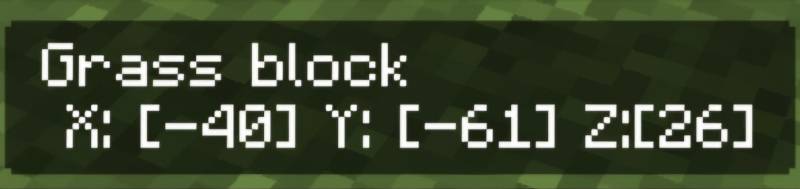
V5.1.0
• Creative Mode Support: Blocks are no longer consumed and tool durability is unaffected when in Creative mode.
• Improved Inventory Handling: Survival mode still removes required blocks and reduces wand durability.
Cleaner Feedback: Enhanced messages and feedback logic based on game mode.